.png)
Activation Steps
1
Log In to Your Account
Access the SmartHQ Service Admin Portal
service.dashboard.smarthqpro.com
Use your existing admin credentials. If you've forgotten your password, click "Forgot Password" on the login page.
2
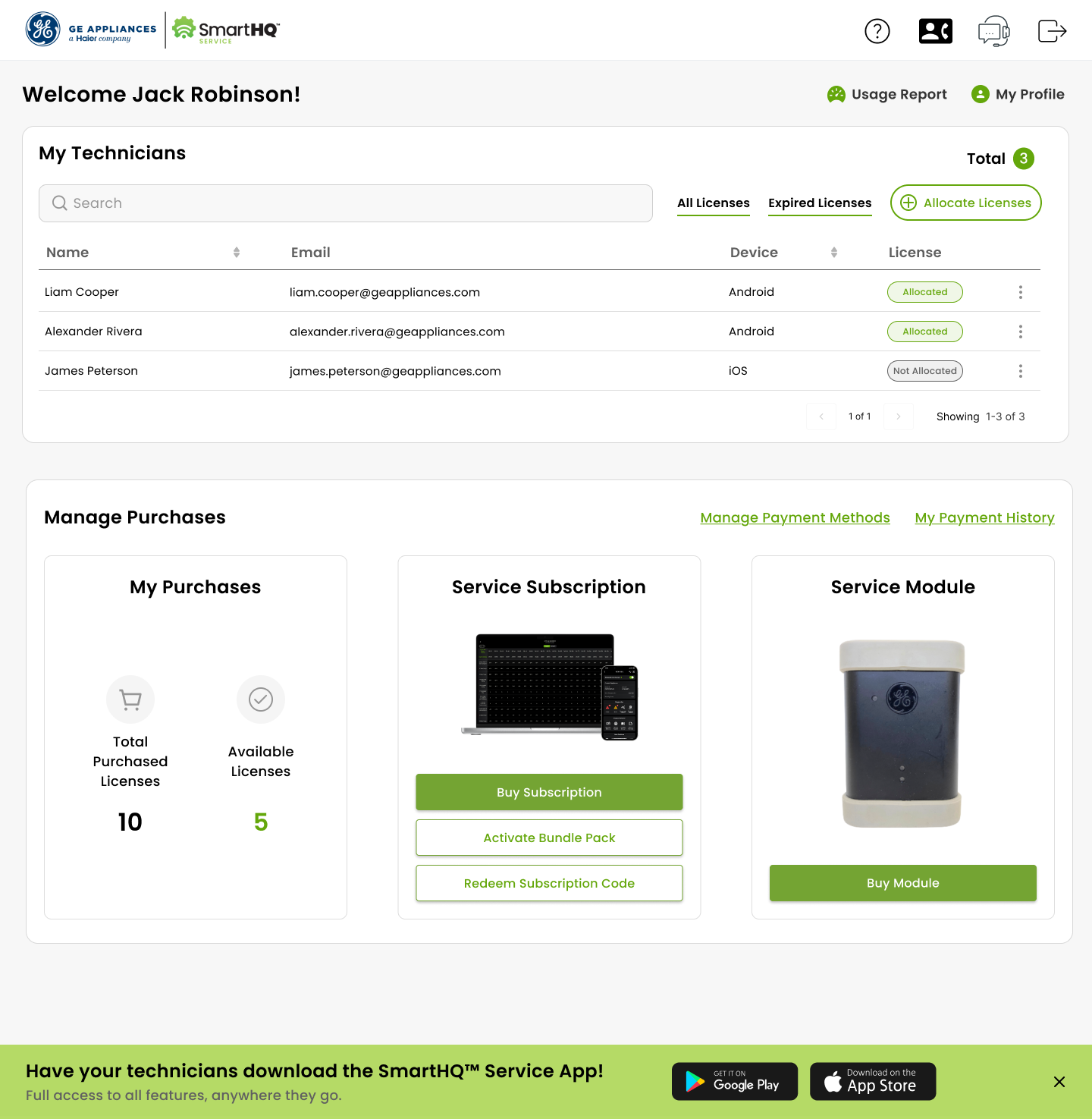
Navigate to Purchases
From your dashboard, go to the "Manage Purchases" section and select "Redeem Subscription Code."
3
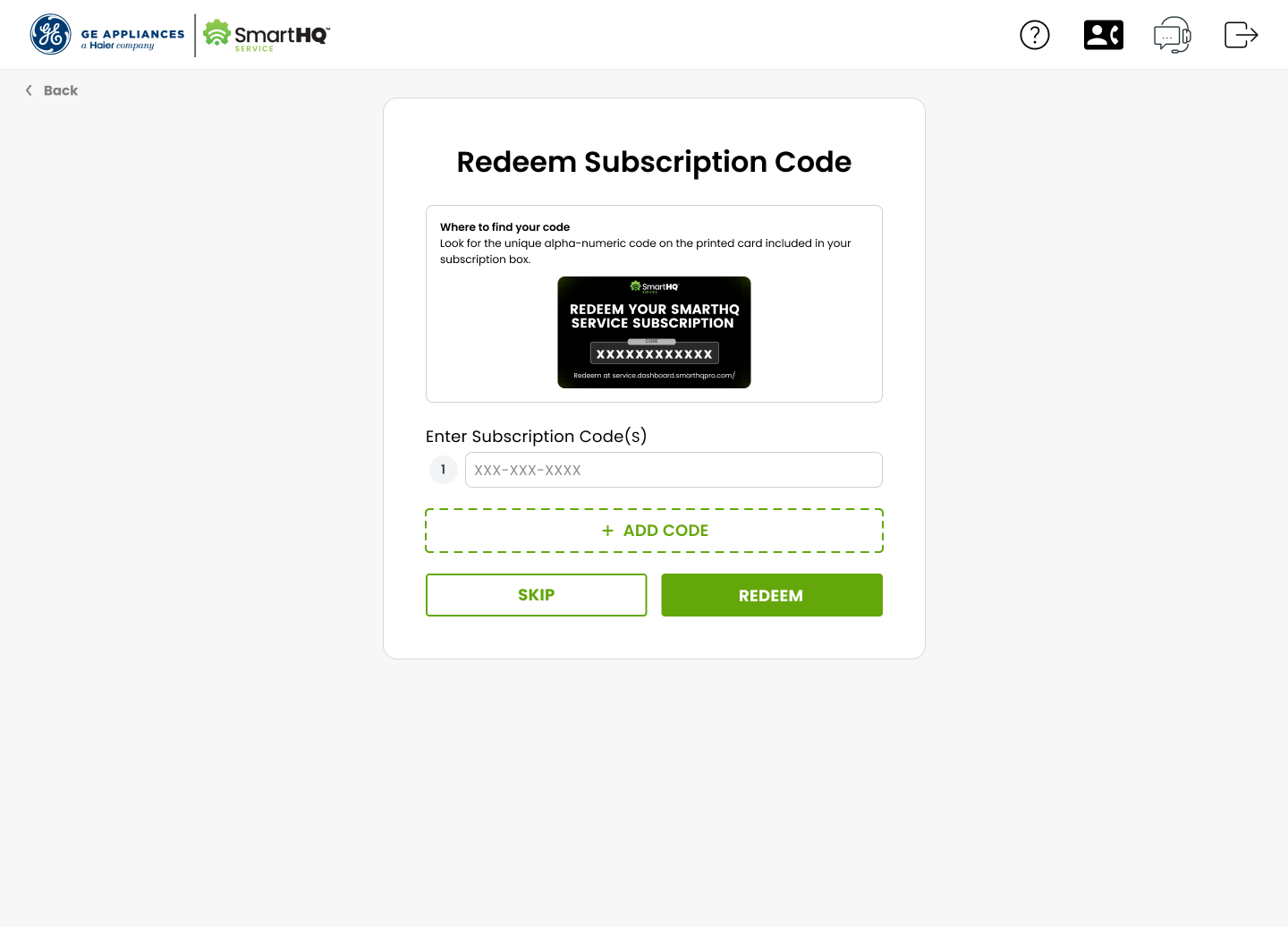
Enter Your Code
Find the alphanumeric code on the card included in your subscription box and type it in exactly as it appears.
Enter your code from the subscription card
D
9
2
8
C
9
C
5
A
A
5
5
No dashes or spaces: Enter the code as one continuous string
Multiple codes? Click "+ ADD CODE" to redeem them all at once
Instant activation: Licenses appear immediately in your Available Inventory
4
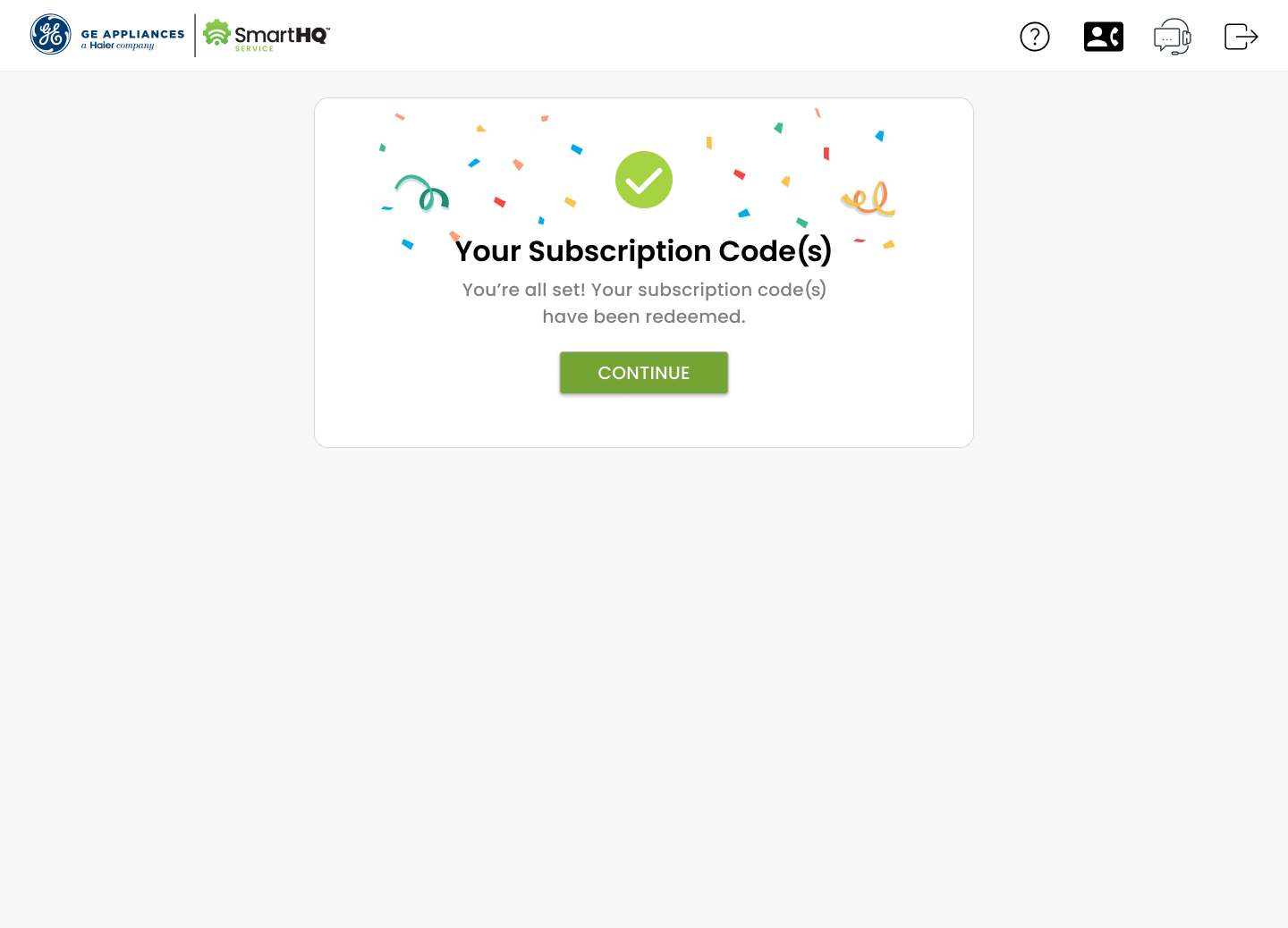
Redeem & Deploy
Click the "Redeem" button. Your new license will instantly appear in your "Available Licenses" inventory.
Deploy Immediately
Assign licenses to technicians or use them to renew existing subscriptions right away. No waiting required.
One Year Validity
Your subscription is valid for one full year from activation. Track expiration dates easily.
Team Management
Easily allocate licenses to team members, track usage, and manage permissions centrally.
Need Help Getting Started?
Our support team is here to help you every step of the way. Whether it's a login issue or questions about code redemption, we've got you covered.
smarthqservice.support@geappliances.com